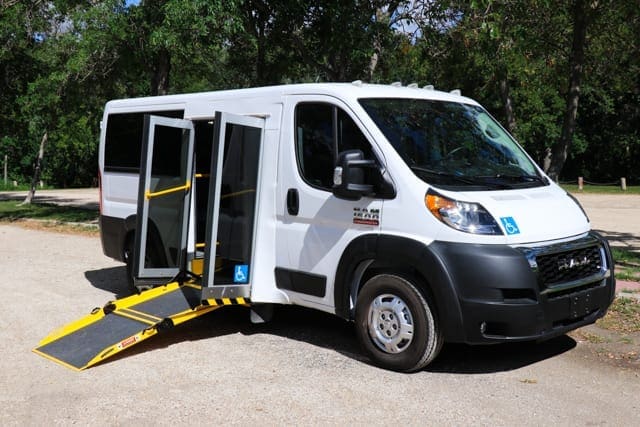
Ever tried to take a call while driving your RAM ProMaster wheelchair van through downtown Toronto or icy Winnipeg streets, only to find Bluetooth won’t connect? For many healthcare and transportation teams across Canada, figuring out how Bluetooth works in your RAM ProMaster can be frustrating. That small gap in connectivity can lead to missed dispatch updates, delayed patient pickups, or staff confusion. When your day depends on reliable communication, every dropped call adds stress you don’t need.
At MoveMobility, we’ve spent over 20 years designing and building both wheelchair and medical vans that keep people connected and safe. We’re certified through Ford QVM and Stellantis QPro, and every vehicle carries Canada’s National Safety Mark. We’ve worked with organizations like Loft Community Services to create transportation that supports dignity, independence, and accessibility. While we’re proud of our expertise, we know there are other manufacturers out there. What sets us apart is our mission to help you reach more people with fewer barriers.
In this article, you’ll learn:
- How Bluetooth connects in your RAM ProMaster
- Common pairing issues and fixes
- Tips to keep your van connected every drive
These insights help you close communication gaps and focus on what matters: Serving people.
How do you connect Bluetooth in your RAM Promaster?
You’d think connecting Bluetooth in your RAM ProMaster would be as simple as turning a key, right? Yet somehow, it can sometimes feel like you’re trying to sync a spaceship instead of a van. Whether you’re sitting in a RAM ProMaster wheelchair van waiting for a passenger in Regina or heading out with your mobile medical team in Halifax, a solid Bluetooth connection can make the difference between a smooth day and a chaotic one. Let’s walk through how it actually works, step by step, and why getting it right helps your team stay safe and connected.
Getting started: Before you hit “pair”
Before diving into the techy stuff, here’s the golden rule: Bluetooth only works when it’s turned on on both the van and your phone. You’d be surprised how many people miss that one simple step (don’t worry, we’ve all done it).
Here’s what to check before pairing:
- Turn on Bluetooth: Go into your phone’s settings and make sure Bluetooth is active.
- Keep your phone visible: Bluetooth can’t find what it can’t see, so make sure your device is in pairing mode.
- Start the van: Your RAM ProMaster needs to be on or in accessory mode so the system powers up.
Once everything’s ready, you’ll use the Uconnect touchscreen system on your van’s dashboard. That’s where the magic happens.
Step 1: Open the phone tab
On the bottom of your Uconnect screen, tap “Phone.” If no device has ever been connected, the screen will politely tell you there are no phones paired. That’s your cue to tap “Add Device.”
Your van’s system will start looking for nearby Bluetooth devices. On your phone, open your Bluetooth settings and wait for your ProMaster to appear in the list. It’ll usually show up as “Uconnect” followed by a few numbers.
Step 2: Pair the devices
Once you see the van’s name pop up on your phone, tap it. A pop-up will appear on both screens asking you to confirm a PIN number. If the numbers match, select “Yes” on both your phone and the van’s touchscreen.
After that, your van and your phone will shake hands digitally, and you’ll see a message saying “Pairing successful.”
You might get a follow-up message asking if you want to connect to Apple CarPlay or Android Auto. You can choose to do that now or later; it’s completely optional. For basic calls, music, and messages, standard Bluetooth does the job just fine.
Step 3: Customize your settings
Once your phone is connected, the system will ask a few questions:
- Access contacts: Say yes if you want hands-free calling with names instead of numbers.
- Sync messages: Optional, but handy if you want text notifications read aloud.
- Make this the primary device: If this is your work phone, go ahead and make it the default.
These small steps make your RAM ProMaster medical van a much smarter partner on the road.
Step 4: Test the connection
Now’s the fun part: Testing it out. Call a coworker, play a podcast, or tell Siri (or Google Assistant) to send a quick message. If you hear sound coming from your van’s speakers, you’re officially connected.
Tip: The first time you do this, volume levels might be low. Use the steering wheel buttons or dashboard knobs to adjust.
If everything works smoothly, you’ll notice how much easier it is to drive safely. No juggling phones, no reaching across seats, just hands-free communication that helps your day run better.
Why is Bluetooth so important in your wheelchair or medical van?
It’s easy to see Bluetooth as a “nice-to-have,” but for healthcare and transport programs, it’s more than that. When you’re driving patients across long stretches of Saskatchewan or coordinating care in remote northern Ontario, reliable communication keeps everyone safer.
Here’s what a connected setup really gives you:
- Safer driving: Keep your hands on the wheel while staying in touch.
- Fewer distractions: No fumbling with your phone.
- Better coordination: Dispatch or medical teams can reach you instantly.
- Professional image: Clients notice when operations run smoothly.
Think of Bluetooth as your silent assistant, always ready to connect the dots between you, your passengers, and your team.
Common Bluetooth connection mistakes (and how to fix them)
Even the best systems hiccup sometimes. If your Bluetooth connection suddenly disappears or refuses to connect, here’s what usually solves it:
- Restart your phone: A quick reboot fixes temporary glitches.
- Forget and reconnect: Go into your phone’s Bluetooth settings, tap the connected van, and hit “Forget.” Then reconnect from scratch.
- Check for software updates: Outdated phone software can cause pairing problems.
- Keep only one device connected: The system can struggle if two phones try to take control.
If all else fails, you can reset the Uconnect system by holding the volume and tuner knobs at the same time for about 10 seconds. It’s the digital version of a deep breath.
Keeping Bluetooth running smoothly
Once connected, your van should automatically recognize your phone every time you start it. Still, a few habits help keep things seamless:
- Stay close: Bluetooth works best within 10 metres.
- Avoid interference: Other wireless devices or chargers can sometimes interrupt the signal.
- Keep your software fresh: Regular updates improve connection speed and reliability.
If you rotate drivers or use fleet phones, each phone can be added and named in the system. You can even remove old devices with a few taps, keeping the list tidy and simple.
Quick recap: The easy connection formula
Here’s the short version for when you’re setting up another vehicle or helping a new driver:
- Turn on Bluetooth on both your phone and the van.
- Tap Phone → Add Device on the Uconnect screen.
- Select the van name on your phone.
- Confirm the PIN on both screens.
- Accept permissions for contacts and calls.
- Test the connection.
That’s it. No tech degree needed.
At the end of the day, Bluetooth is part of a larger goal: To stay connected, organized, and focused on care delivery. When your RAM ProMaster wheelchair van or RAM ProMaster medical van works seamlessly with your team’s devices, it keeps the small things, like communication, from getting in the way of the big things, like saving lives.
So the next time someone on your team asks, “Does anyone know how Bluetooth works in this van?”, you can smile, tap a few buttons, and say, “Yep, got it covered.”
Stay connected with Bluetooth in your RAM ProMaster
You came here because your Bluetooth in your RAM ProMaster wasn’t cooperating. Maybe it dropped calls mid-route or refused to pair when you needed it. Or, maybe you haven’t even purchased a RAM ProMaster van yet, and you’re just interested in how Bluetooth works. Those moments can throw off your schedule, frustrate your team, and create gaps in communication that affect the people you serve.
Now you know how to fix that. Here’s what you learned today:
- How Bluetooth connects your RAM ProMaster van.
- How to troubleshoot issues: Simple resets that solve 90% of pairing problems.
- How to keep it reliable: Easy habits that make every drive smoother.
For over two decades, MoveMobility has designed and delivered innovative wheelchair and mobile medical vans across Canada. From Saint Thomas Health Centre to Liard First Nation, our vehicles help communities stay connected and care for people where they are. We combine certified safety standards with a deep understanding of real-world use, so your team can focus on care, not complications. We lead with empathy, experience, and craftsmanship that stands the test of time. If you have any questions, click the button below to talk to a mobility expert.
If you’re not ready to talk yet, here are a few helpful reads to explore next:
- Ram ProMaster wheelchair vans: Everything you need to know: A complete guide for organizations comparing models and features before purchase.
- How to compare wheelchair van quotes: Gain a better understanding of how to compare different quotes.
- Buying an accessible vehicle: Your process with MoveMobility: See how easy it is to move from research to delivery with the right partner.

 English
  French